Setup in under 10 minutes

How PlayBrandy Works: TV Stage + Phone Controllers

PlayBrandy turns any TV into a live multiplayer game arena and every smartphone into a controller. Create a branded game, open the stage in your TV browser, and let your audience join by scanning a QR code. Nobody installs an app, and you need no special hardware or technical skills.

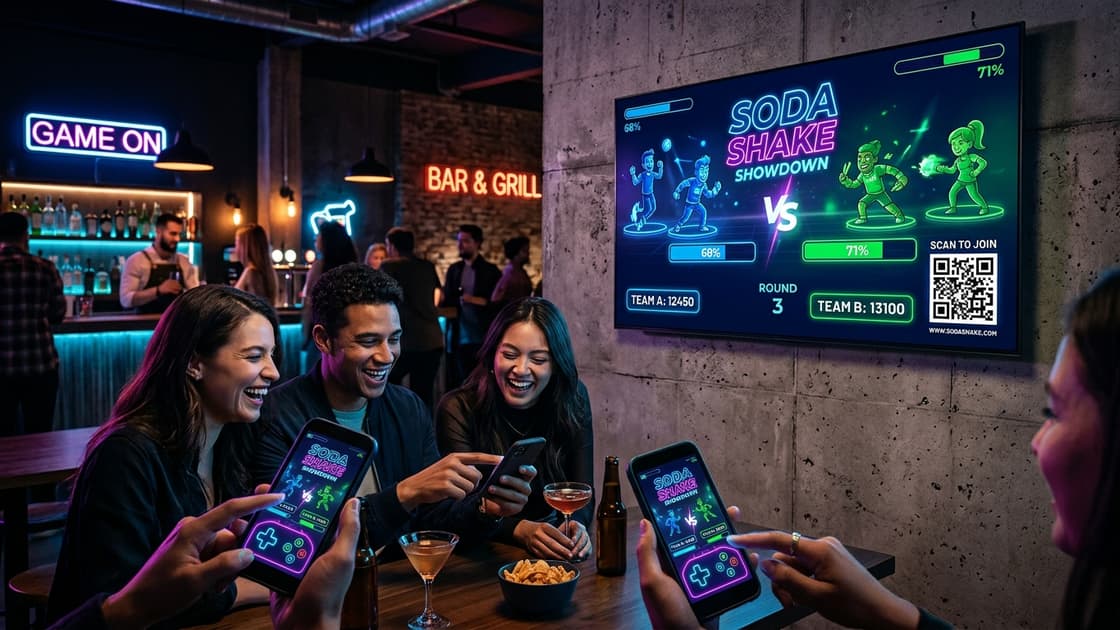
PlayBrandy multiplayer game stage on a large TV while players control the game with their smartphones

The Big Picture: One Screen, Many Players

Every PlayBrandy experience has two parts. The stage is the shared big screen, usually a TV, projector or LED wall. It shows the game arena, team scores, player rosters, the countdown timer and a join QR code. The phone controller is what each player sees on their own smartphone. It provides the buttons, motion sensing and personal score.

Both parts connect to PlayBrandy's real-time servers over the internet. When a player shakes their phone, taps a button or types a code, the action reaches the stage in milliseconds, so the whole room sees the result together. Because everything runs in a standard web browser, it works on almost any modern TV device and any smartphone.
Step by step

From Sign-Up to Your First Live Round

Follow these five steps to launch a branded multiplayer game at your store, event, office or party.

  1. 1

    Create your account and pick a game

    Sign up for free and open the Game Library. Choose a template such as Soda Shake Showdown, Scoop-a-Licious Ice Cream Tower or Sneaker Drop Unboxing. Each one is already built for two-team, real-time multiplayer play.

  2. 2

    Brand it as a campaign

    Click "Create Campaign" to make your own copy. Apply your brand kit logo, icon and colors, customize game resources, and set player limits, round time, target scores and auto-restart intervals without writing any code.

  3. 3

    Launch the stage on your TV

    From the dashboard, click "Open Stage" or "Copy TV URL". Open that link in the web browser on your Smart TV, Fire TV Stick or a laptop connected over HDMI. The stage shows the game arena, live team scores, rosters and a join QR code.

  4. 4

    Players scan and join

    Guests scan the QR code with their phone camera, or type the short join URL and 6-digit code. The phone controller opens right in their mobile browser and places each player on a balanced team automatically.

  5. 5

    Play, celebrate and repeat

    Once minimum players are ready, the round begins automatically. Phones become real-time controllers to shake, tap or swipe as actions sync to the TV in milliseconds. At the finish, the stage crowns the winners, phones display your End Card offer and CTA, and auto-restart launches the next round.

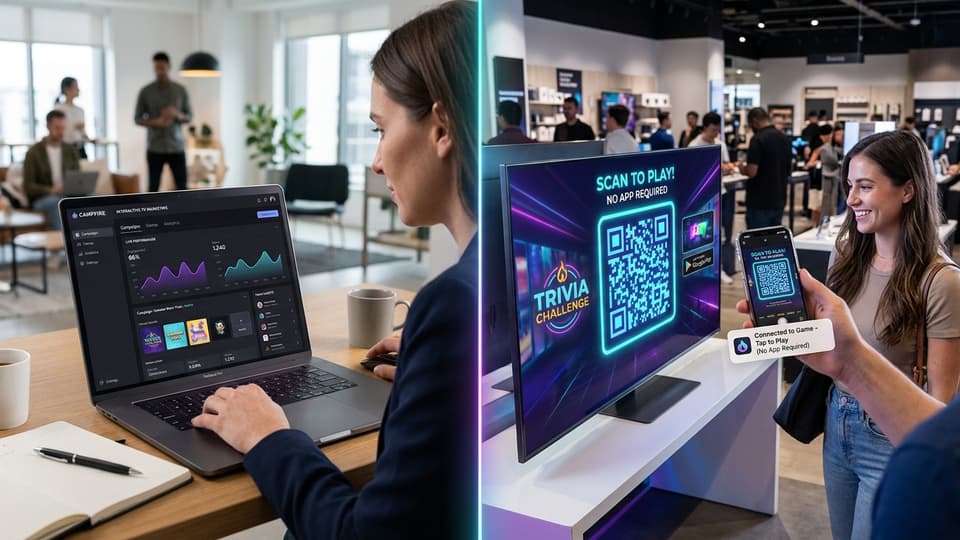
Brand manager customizing a PlayBrandy campaign on a laptop while a guest scans the TV QR code to join
Customize your campaign in the dashboard, then players join by scanning the QR code.

What Happens Behind the Scenes

When you launch a stage, PlayBrandy creates a secure live room with its own 6-digit join code. Players who join get a team automatically, so both sides stay balanced. The game starts once enough players are ready.

During play, the server collects each player's score and sends the updates to the stage. In auto-restart mode, the next round starts after your chosen cooldown, so the game can run unattended all day in a store or at a booth.

TV hardware requirements

TV Hardware Configuration & Performance Tiers

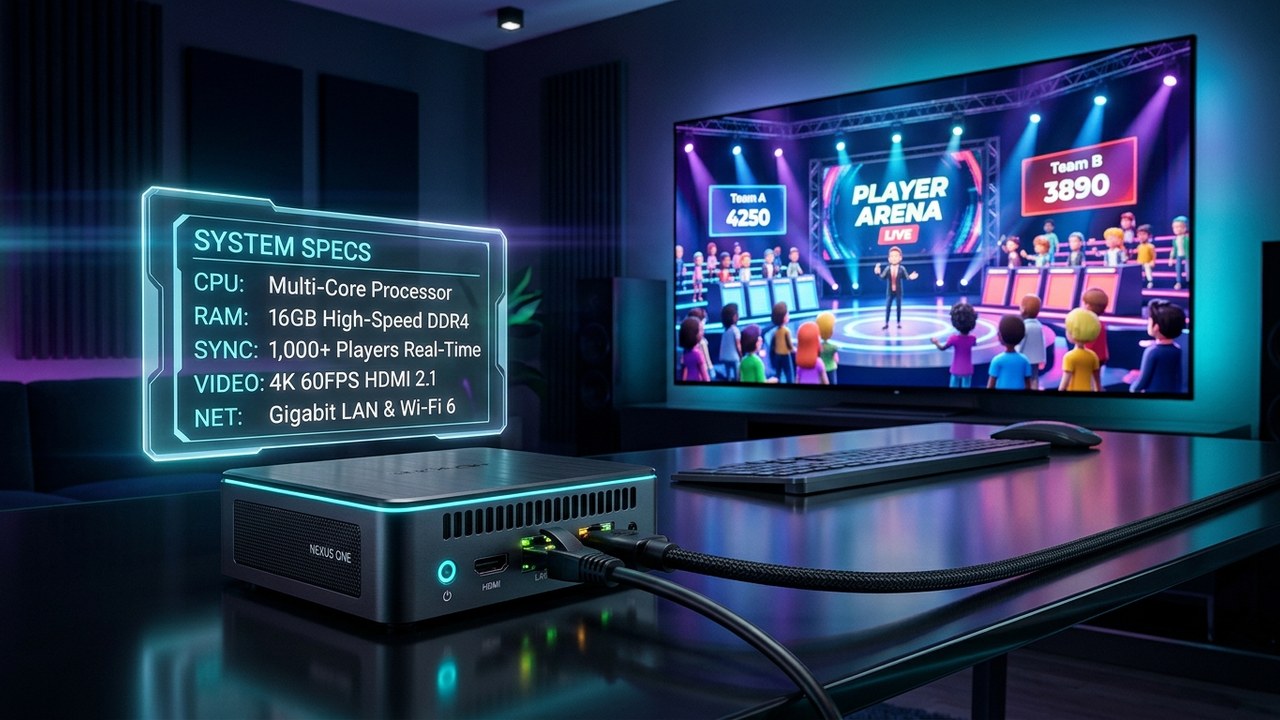
PlayBrandy stages are lightweight and flexible. Use a low-cost streaming stick for casual gatherings, or a dedicated Mini PC over HDMI for high-CCU crowd competitions.

Amazon Fire TV Stick plugged into a Smart TV HDMI port, the minimum hardware for the PlayBrandy stage
A Fire TV Stick 2K plugged into any HDMI TV is enough to run casual games with smaller crowds.
Baseline Tier • Small Venues (<25 CCU)

Baseline: Amazon Fire TV Stick 2K

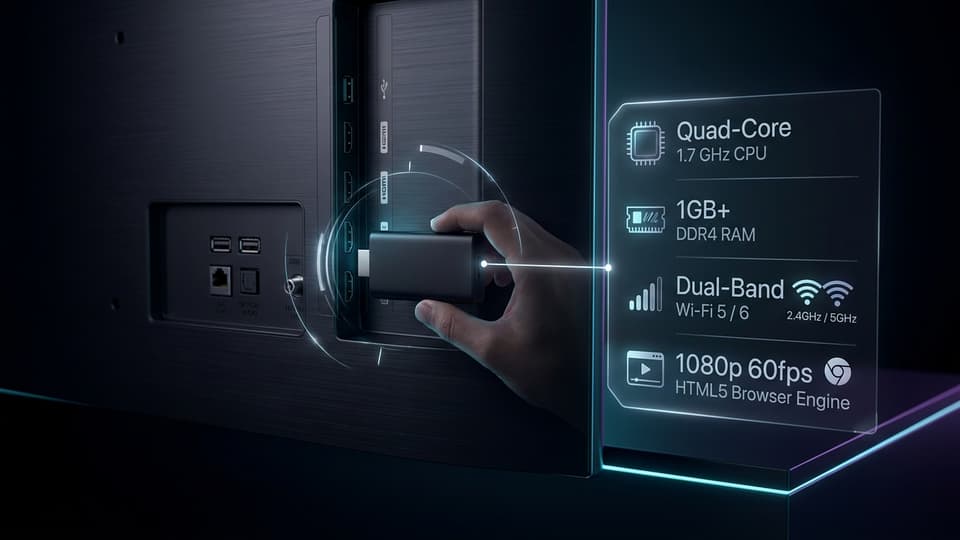
It is affordable, widely available, and plugs directly into any TV with an HDMI port. Its quad-core processor and 1 GB of memory run our animations smoothly for casual gatherings, small taprooms, and low-traffic booths.

PlayBrandy stages throttle background animations, reuse on-screen canvas elements, and free memory between rounds to ensure stable playback even on entry-level streaming devices.

Dedicated Mini PC with 8GB to 16GB RAM connected to TV via HDMI cable for high CCU real-time crowd gaming
For high CCU and 3D games, a Mini PC with 8GB–16GB RAM connected via HDMI delivers rock-solid 60 FPS.
Recommended • High CCU & Live Events

High CCU & Real-Time Events: Use a Mini PC via HDMI

TV browsers are not suitable for all games and higher CCU in real time. Built-in Smart TV browsers (such as Samsung Tizen, LG webOS, or basic streaming sticks) have strict RAM limits and underpowered CPUs that throttle or drop frames when rendering complex 3D WebGL animations alongside dozens or hundreds of simultaneous real-time WebSocket player interactions.

For optimal performance, smooth 60 FPS graphics, and higher concurrent users (50 to 1,000+ simultaneous players), you need to use a Mini PC with a minimum of 8GB to 16GB RAM. Connect this Mini PC directly to your TV or arena LED wall through an HDMI cable. Running Google Chrome or Microsoft Edge with full hardware GPU acceleration ensures zero lag, fluid animations, and rock-solid event reliability.

Hardware comparison: Baseline streaming stick vs. Dedicated Mini PC for High CCU
ComponentMinimum (Fire TV Stick 2K)Recommended (Mini PC via HDMI)
Stage host deviceAmazon Fire TV Stick (2K / HD, 3rd Gen or newer)Dedicated Mini PC (Intel N100 / Core i5 / Ryzen) via HDMI cable
Best suited forCasual games & small crowds (<25 CCU)High CCU (50 to 1,000+ simultaneous players) & real-time 3D games
System memory (RAM)1 GB (Basic lightweight animations)8 GB to 16 GB RAM (Eliminates frame drops & memory bottlenecks)
ProcessorQuad-core 1.7 GHz streaming processorMulti-Core 2.4 GHz+ Desktop / Mobile CPU (Hardware WebGL acceleration)
Display connectionDirect HDMI stick plug-in (720p / 1080p)High-speed HDMI cable to 1080p / 4K TV or Arena LED Video Wall (60 FPS)
Browser environmentBuilt-in TV browser (Silk / webOS / Tizen)Google Chrome or Microsoft Edge with full hardware GPU acceleration
Network interfaceDual-band Wi-Fi 5 (10 Mbps+)Gigabit Ethernet (LAN) or Wi-Fi 6 for ultra-low WebSocket latency
Player phonesAny smartphone with Safari, Chrome or Samsung InternetiOS 15+ / Android 10+ with full WebGL & WebSocket support
Open the stage

How to Enter the Stage URL on Your TV

Use the browser app on your TV to open the stage link. Here are the two easiest ways to type it.

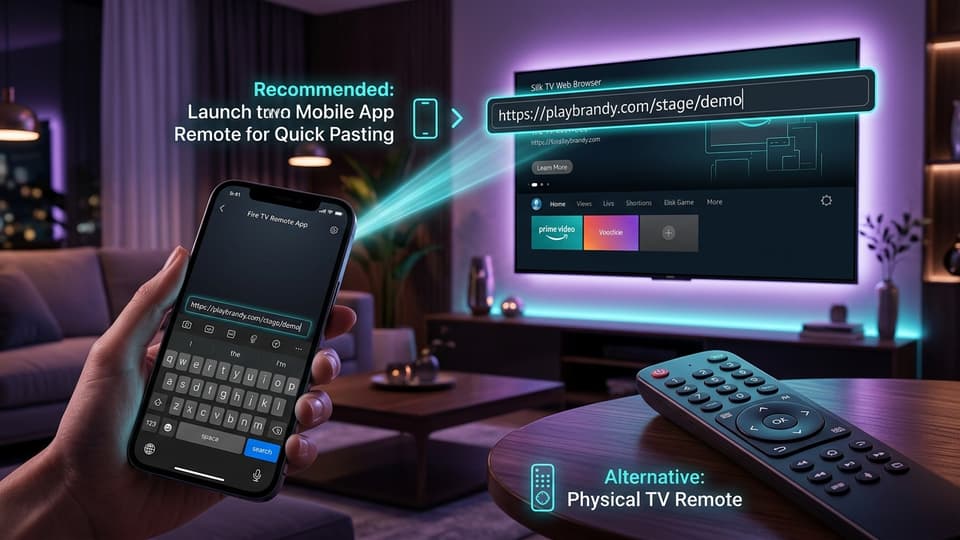
Typing the PlayBrandy stage URL into a TV browser using a mobile remote app, with the physical TV remote as an alternative
Type the URL quickly with a mobile remote app, or use the TV remote.

Step 1: Open the browser app on your TV

On a Fire TV Stick, open Amazon Silk Browser (if you don't have it, install it free from the Appstore). On other Smart TVs, open the built-in Internet or Web Browser app. Then select the address bar at the top.

Step 2 (recommended): Type with a mobile remote app

Typing a long URL with arrow keys is slow. Install your TV's free remote app on your phone, such as the Amazon Fire TV app, Google TV app, Samsung SmartThings or LG ThinQ. Connect it to the same Wi-Fi as the TV, tap the keyboard icon, and type or paste the stage URL you copied from the dashboard using "Copy TV URL". Press Go.

Alternative: Use the TV remote

You can also use the TV remote's directional pad to pick each character on the on-screen keyboard, then press Go. Many remotes support voice search too. Once the stage loads, bookmark it and press the full-screen button for the best view.

Tips for a Smooth Live Session

  • Test before guests arrive: open the stage and join with two phones to check sound, scores and the QR code.
  • Keep the QR code visible: place the TV at eye level so players can scan it from a few meters away.
  • Use strong Wi-Fi: both the TV and the players' phones need a stable internet connection. Mobile data works fine for phones.
  • Turn on sound: the stage plays game music and effects, so connect the TV to speakers at events.
  • Enable auto-restart: unattended screens in stores and booths keep running new rounds automatically.
Common questions

How It Works: Frequently Asked Questions

Do I need to install an app on the TV?

No dedicated PlayBrandy app is needed. You only need a web browser on the TV or connected device, such as Amazon Silk on a Fire TV Stick or Google Chrome on a connected Mini PC. Open the stage URL and the game runs immediately.

Can I use a built-in TV browser for all games and large crowd events?

Built-in TV browsers are not suitable for all games and higher CCU (Concurrent Users) in real time. Smart TV chipsets have strict RAM limits and underpowered processors that throttle or drop frames when handling dozens to hundreds of concurrent WebSocket player interactions. For high-energy events, 3D games, and 50+ to 1,000+ players, you need to use a dedicated Mini PC with a minimum of 8GB to 16GB RAM connected to the TV through an HDMI cable for silky-smooth 60 FPS performance and rock-solid stability.

What is the minimum TV hardware for casual play in small venues?

For casual play and small gatherings (under 25 players), an Amazon Fire TV Stick 2K (HD) class device or similar is the baseline: a quad-core 1.7 GHz processor, 1 GB RAM, and dual-band Wi-Fi.

What is the easiest way to type the stage URL on a TV?

Use a mobile remote app such as the Amazon Fire TV app, Google TV app or your TV maker's remote app. It lets you type or paste the URL with your phone keyboard. On a Mini PC, simply open Chrome or Edge with a wireless keyboard or remote.

Do players need to download anything?

No. Players scan the QR code on the TV or open the join link, and the controller loads in their mobile browser. There are no downloads or account sign-ups.

Can the game run unattended all day at a store or booth?

Yes. Turn on Auto-Restart in your campaign settings and set a cooldown interval. After each round finishes and winners are revealed, the room automatically resets and waits for the next group of players.

Can I capture player leads and show a promo offer after the round?

Yes. You can add custom entry fields (like email or phone number) to the Join Card, forward submissions to your CRM via webhooks, and display a branded End Card with a special offer and product CTA button when the round ends.

Ready in minutes

Turn Your TV Into a Live Brand Game Arena

Create your first branded multiplayer game for free, open it on any TV browser, and watch your audience play together.

Create Your First GameExplore Game Templates